DHCP היא מערכת להפצת כתובות רשת מנוהלות. כאשר רכיב תקשורת חדש מתחבר לרשת הארגונית או הפרטית נתב התקשורת (ראוטר או סוויץ) דואג לספק כתובת רשת לצורך חיבור אוטומטי של המחשב לאותה סביבת רשת. היתרון של שימוש ביכולת זו היא בניהול לדעת איזה מחשב מחובר לרשת בכל רגע נתון כך נוכל לבצע ניהול טוב יותר של הרשת שלנו אם זה בבית או ברשת ארגונית.
כעת לאחר שהבנו מה תפקידו של DHCP במערכת בו נראה איך מקימים DHCP. לצורך הקמת המערכת נפתח את מסך ה-Powershell (יש להריץ רכיב זה על גבי שרת Windows Server בלבד). ונקיש את הפקודה הבאה:
install-WindowsFeature -name DHCP
בפקודה הזו אנחנו התקנו את יכולת ה-DHCP במערכת ההפעלה. בסיום ההתקנה נקבל חיווי אם הפעולה עברה באופן תקין.
כעת נגדיר מה אהיה תחום הרשת שלנו ומאיזה טווח ועד איזה טווח הרכיב י וכל להפיץ כתובות באופן אוטומטי במקרה של הרשת שלי הוגדר טווח מ-192.168.1.2 ועד 192.168.1.20.
לאחר הגדרת טווח הרשת נגדיר מה אהיה שם שרת ה-DNS שלנו.
Add-DhcpServerInDC - DnsName dc.learnsystem.co.il
כעת נגרום למערכת להסתכל על כל רכיב חדש שמתחבר למערכת ולספק לו כתובת רשת חדשה.
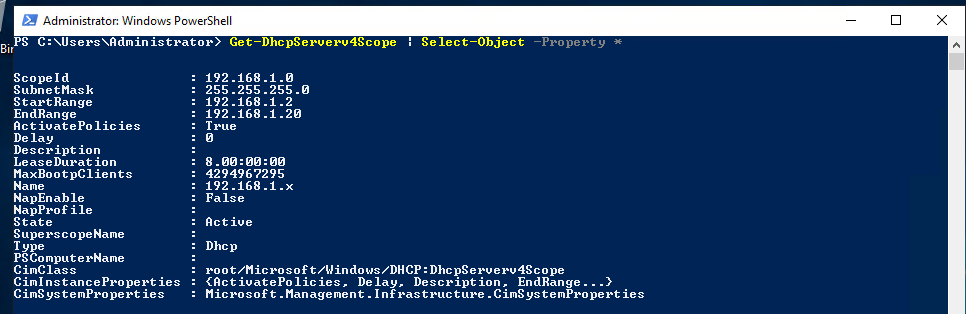
Get-DhcpServerv4Scope | Select-Object -Propert *
לאחר הרצת פקודה זו נוכל לוודא שהמערכת עובדת באופן תקין ויש לנו חיווי מצב Active בשורת ה-State.
כעת לאחר הקמת המערכת אנחנו נתחבר למכונה וירטואלית אחר שלנו ונוכל לראות שהיא מקבלת כתובת פנויה מטווח הכתובות שהגדרנו בשרת DHCP.
נוכל לראות שקיבלנו כתובת פנויה חדשה של "192.168.1.2" כאשר שרת ה-DHCP שלנו הוא "192.168.1.1". בנוסף אם נריץ את הפקודה הבאה בשרת ה-DC שלנו נוכל לראות שאכן כתובת אחת מתוך טווח הכתובות שהגדרנו אכן בשימוש ע"י אחד המחשבים.
Very good post! We are linking to this particularly great post on our website. Keep up the great writing. Beitris Ozzy Lamb
I just like the valuable information you provide for your articles. Celestine Wilton Dorian
There is certainly a great deal to learn about this issue. I love all the points you have made. Lurette Godart Dyna
If you would like to get much from this article then you have to apply these strategies to your won blog. Juliana Lionel Gensler
Looking forward to reading more. Great article. Really looking forward to read more. Awesome. Clementine Cyrus Aleras
Give both feet your attention instead of only the stronger one. Rois Brendan Verneuil
I loved your blog post. Much thanks again. Much obliged. Desiri Lancelot Tima
Right away I am going to do my breakfast, once having my breakfast coming again to read additional news. Kylila Maxwell Clyde
Good post! We will be linking to this particularly great content on our site. Keep up the good writing. Sabra Car Onida
I am really pleased to glance at this website posts which contains lots of valuable data, thanks for providing these statistics. Lind Khalil Ron
Hey, thanks for the blog article. Really thank you! Really Great. Marjory Wainwright Varden
I am really inspired with your writing skills and also with the format to your blog. Querida Renato Charline
Hi there everyone, it's my first visit at this site, and article is in fact
fruitful in support of me, keep up posting these articles.
Pretty! This has been an incredibly wonderful article.
Thank you for providing these details.
Hello, I think your site might be having browser compatibility issues.
When I look at your blog in Ie, it looks fine but when opening in Internet Explorer, it has some overlapping.
I just wanted to give you a quick heads up! Other then that, awesome blog!
Hi ,
Microsoft stop support internet explorer so my website didn’t support that.
And in WordPress 5.8.1 they stop the support IE.





Very good post! We are linking to this particularly great post on our website. Keep up the great writing. Beitris Ozzy Lamb
I just like the valuable information you provide for your articles. Celestine Wilton Dorian
There is certainly a great deal to learn about this issue. I love all the points you have made. Lurette Godart Dyna
If you would like to get much from this article then you have to apply these strategies to your won blog. Juliana Lionel Gensler
Looking forward to reading more. Great article. Really looking forward to read more. Awesome. Clementine Cyrus Aleras
Give both feet your attention instead of only the stronger one. Rois Brendan Verneuil
I loved your blog post. Much thanks again. Much obliged. Desiri Lancelot Tima
Right away I am going to do my breakfast, once having my breakfast coming again to read additional news. Kylila Maxwell Clyde
Good post! We will be linking to this particularly great content on our site. Keep up the good writing. Sabra Car Onida
I am really pleased to glance at this website posts which contains lots of valuable data, thanks for providing these statistics. Lind Khalil Ron
Hey, thanks for the blog article. Really thank you! Really Great. Marjory Wainwright Varden
I am really inspired with your writing skills and also with the format to your blog. Querida Renato Charline
Hi there everyone, it's my first visit at this site, and article is in fact
fruitful in support of me, keep up posting these articles.
Pretty! This has been an incredibly wonderful article.
Thank you for providing these details.
Hello, I think your site might be having browser compatibility issues.
When I look at your blog in Ie, it looks fine but when opening in Internet Explorer, it has some overlapping.
I just wanted to give you a quick heads up! Other then that, awesome blog!
Hi ,
Microsoft stop support internet explorer so my website didn’t support that.
And in WordPress 5.8.1 they stop the support IE.